
Wider Format
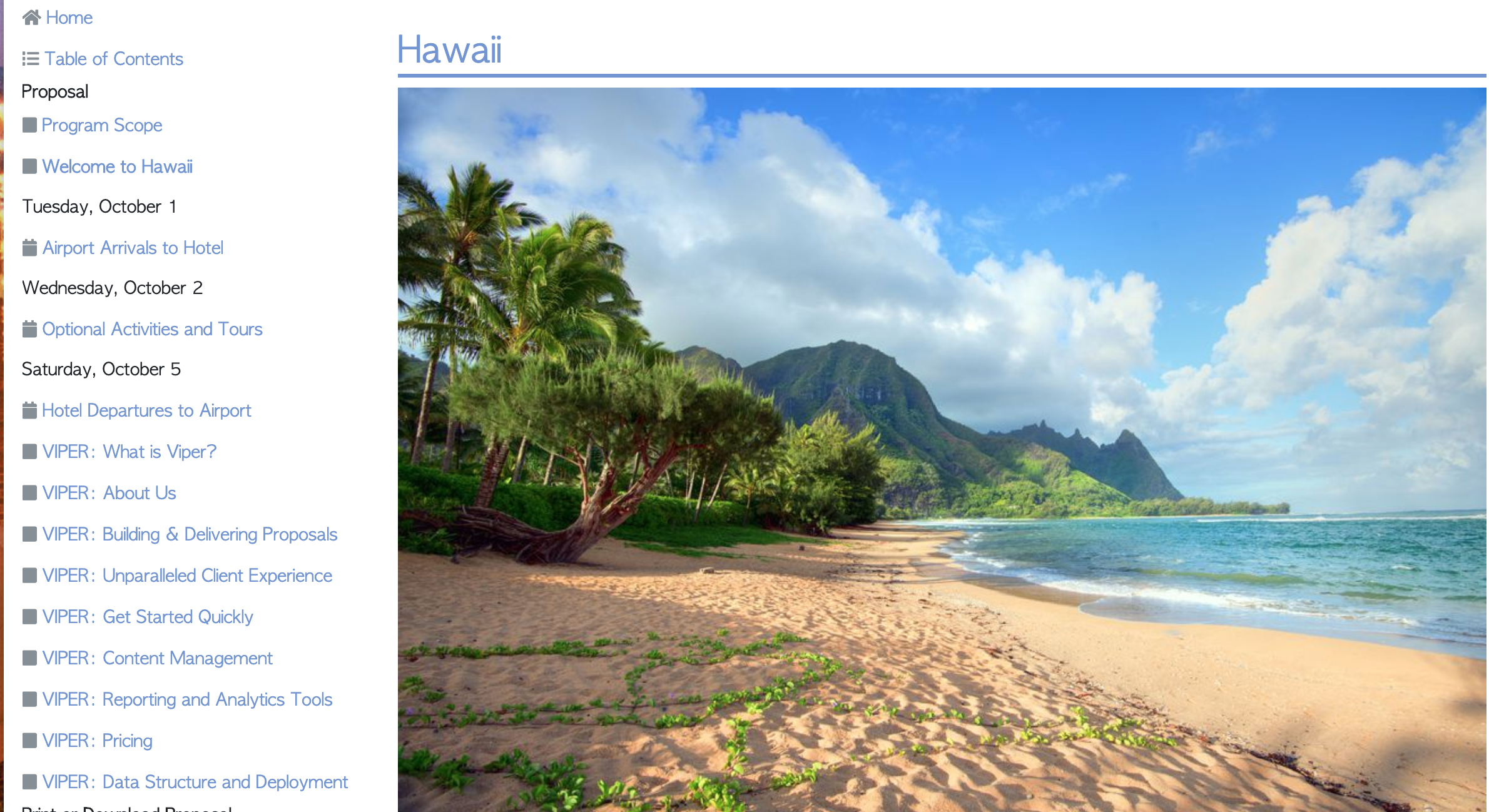
Your client now has access to a much wider viewing area of your content when viewing proposals on their computer. The object of this was to make these more like actual websites and to have your content be richer and more immersive. If any of your old images are smaller than this format, the pictures will appear centered. Remember to always use the largest format available for photos and VIPER will auto-size them to the correct dimensions.
Proposals are Mobile Friendly
Your clients can now access their proposal directly from their mobile devices and they will view properly.
Recycle Bin
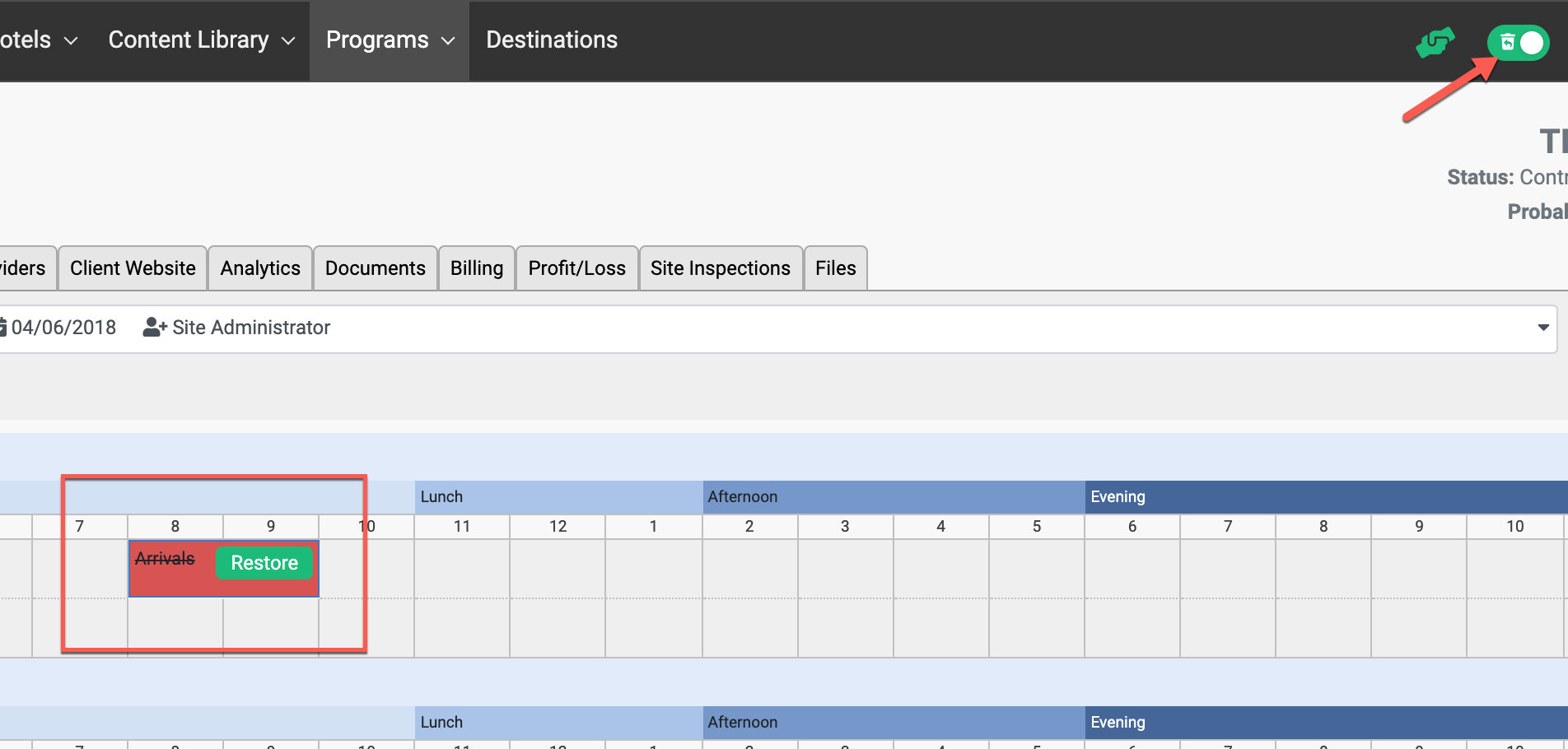
Added Recycle Bin to programs so you can now recover deleted Events, Sections, Proposal Content, and Line Items. To recover deleted items, you can enable the Recycle Bin in the upper right of your screen and select deleted items (highlighted in red) to recover. When you're done recovering items, be sure to disable the Recycle Bin.
Task Management
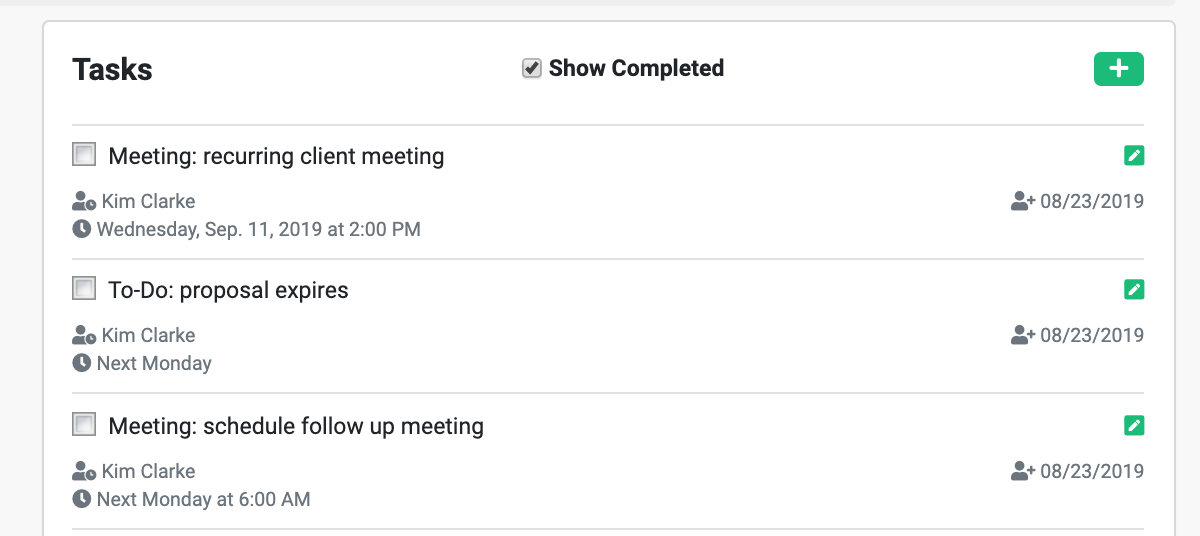
You can now add tasks to Clients, Vendors, Hotels, and Programs. When adding tasks, you can link them to a specific contact, assign them to a specific employee within your company, and set a due date. You can view your tasks on your Dashboard and use the Tasks report under Clients, Vendors, Hotels, and Programs to view and filter all tasks. Note that when adding a task and assigning it to another user, the assigned user will be sent an email notification.
Content Library

Added bulk actions for Move and Export to Word.
Bulk Move: Enable Bulk Move using the [Bulk Move] button in the upper right of the Content Library folder view. Check the items you want to move and then select the destination folder.
Bulk Export: Enable Bulk Export using the [Export] button in the upper right of the Content Library folder view. Check the items you want to export to Word and then click [Export] button at the bottom of the screen. Note that only proposal descriptions can be exported to Word. Pricing is not included in the export.
Product Pricing
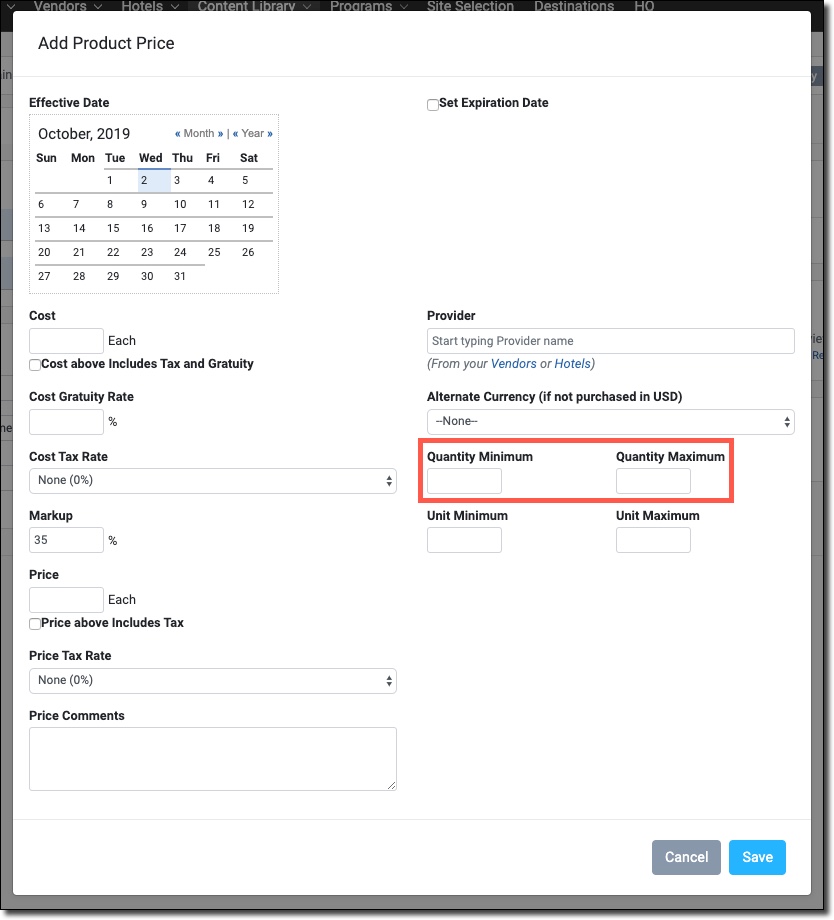
Added new fields for Quantity Minimum and Quantity Maximum. These fields are shown in the Product Pricing input screen and also in the Costing, via the Product Details popup.
Costing - Individual Line Item Options
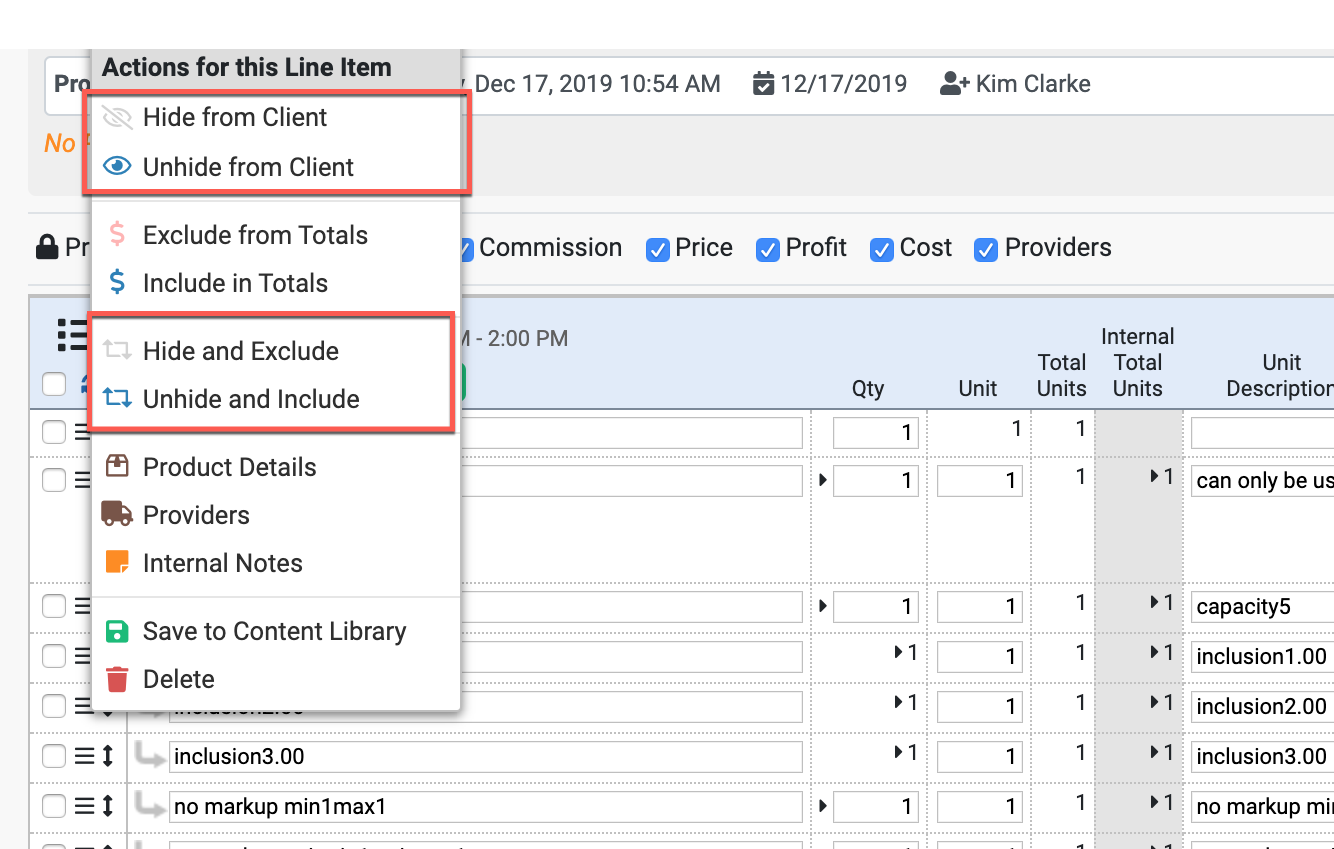
Added more options for single line item menu. If you need to change options for a single line item, you no longer need to check the line item checkbox and select bulk actions from the header menu.
Costing - Save back to Content Library
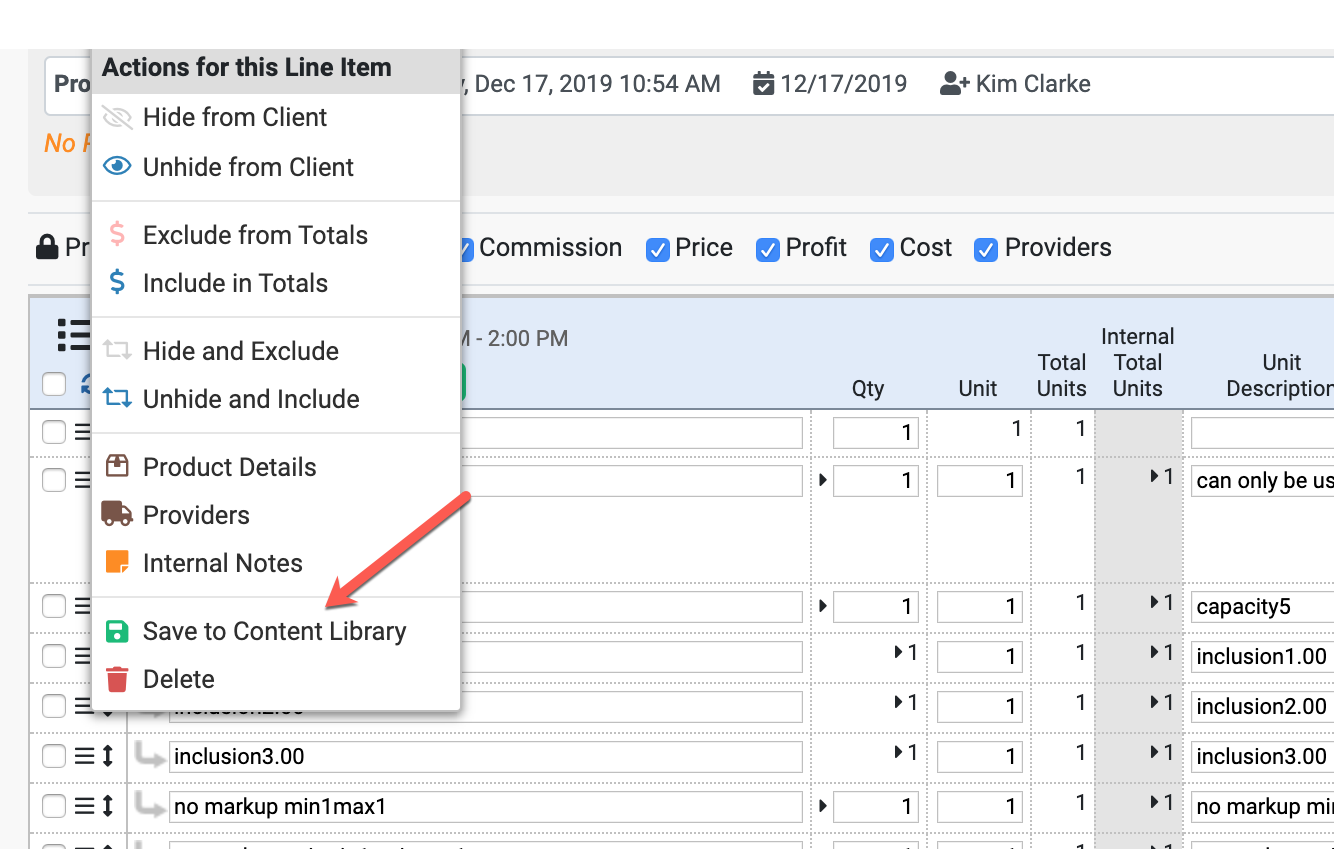
Added an option to save individual products and packages in the Costing back to the Content Library. If this is an existing cost in your content library, you will be prompted to either replace current pricing or you can make a new version of the pricing. See screenshot below:
Costing - Bulk Move/Copy
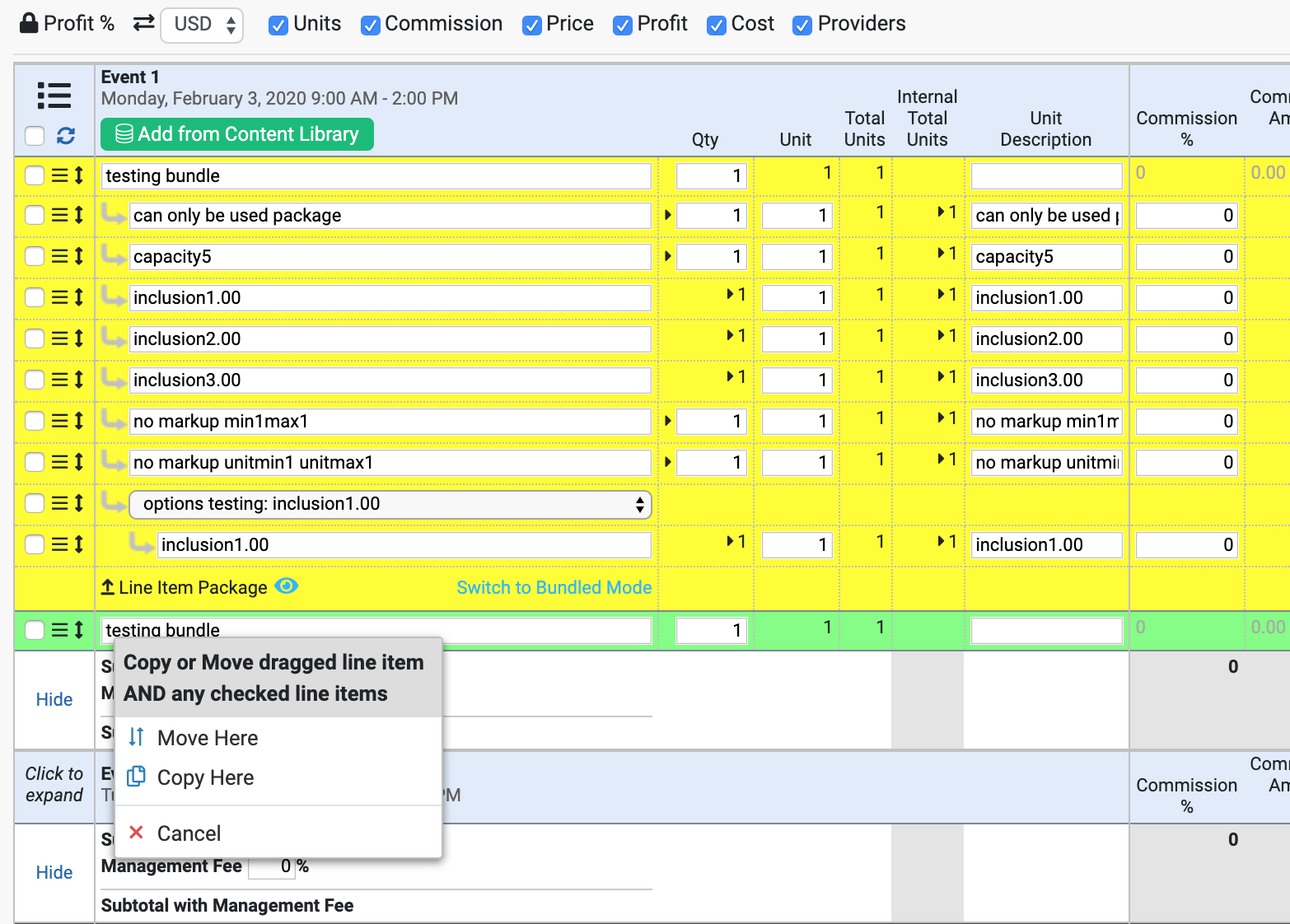
Added support for moving and copying multiple line items at once. Simply check the line items you want to move or copy, THEN drag one of the line items to the new location. And as an added bonus, you can now copy line items directly before or after the selected line item.
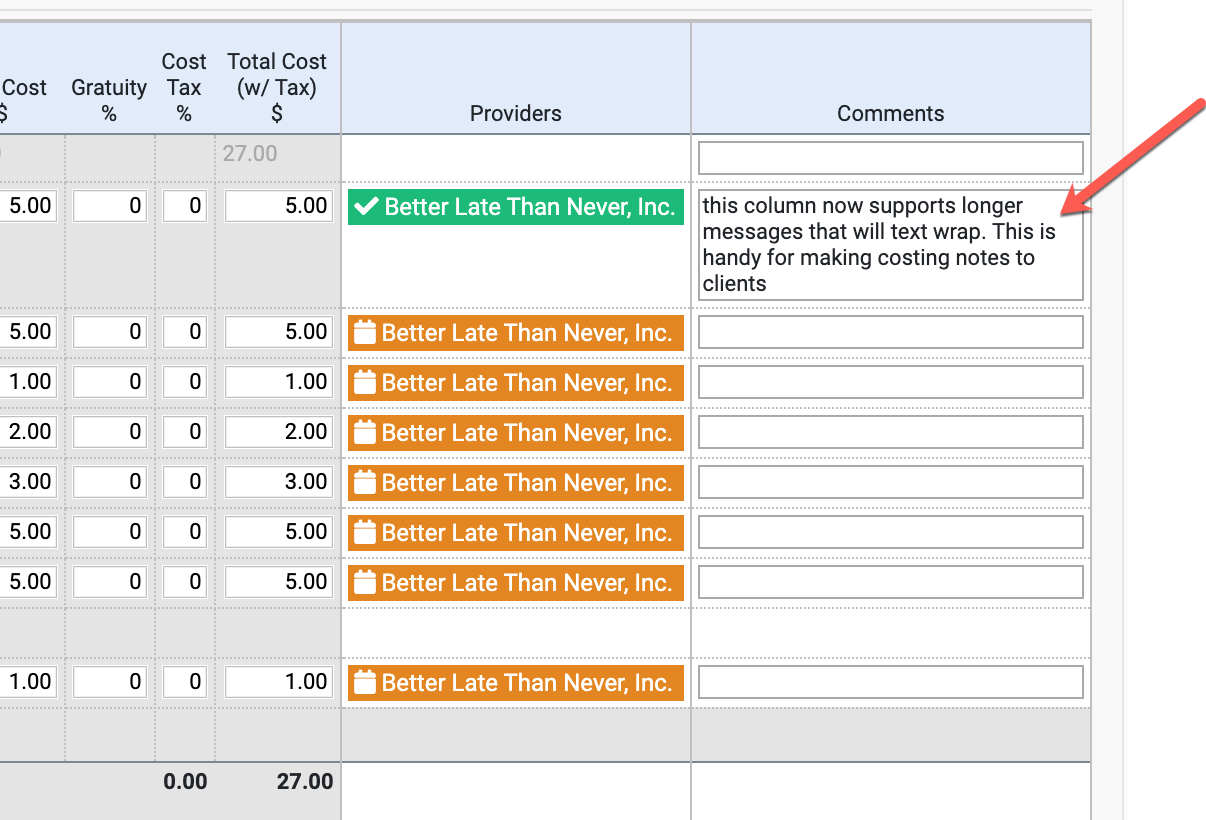
Costing - Comments Field supports Multiple Lines
You can now enter multiple lines and more text into the Comments field in the Costing. Just press Enter to add a new line!
Assign providers from the costing
From the costing tab, you can now select the 3 horizontal bars next to your line item to bring up an assortment of options, including the ability to assign a provider from this tab. Selecting the delivery truck icon will bring up the providers window where you can enter your providers name and add a status as well. See screenshot below: 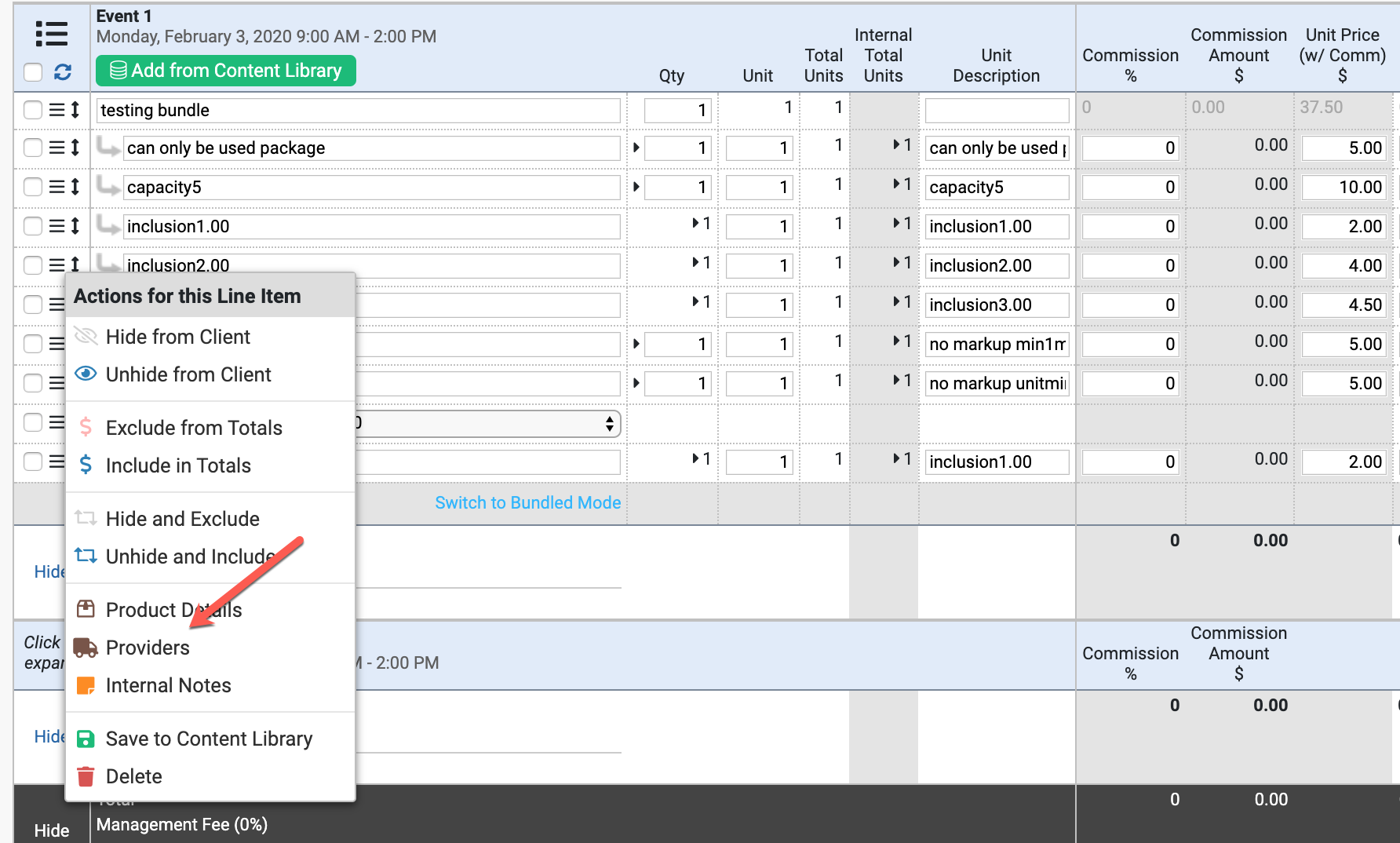
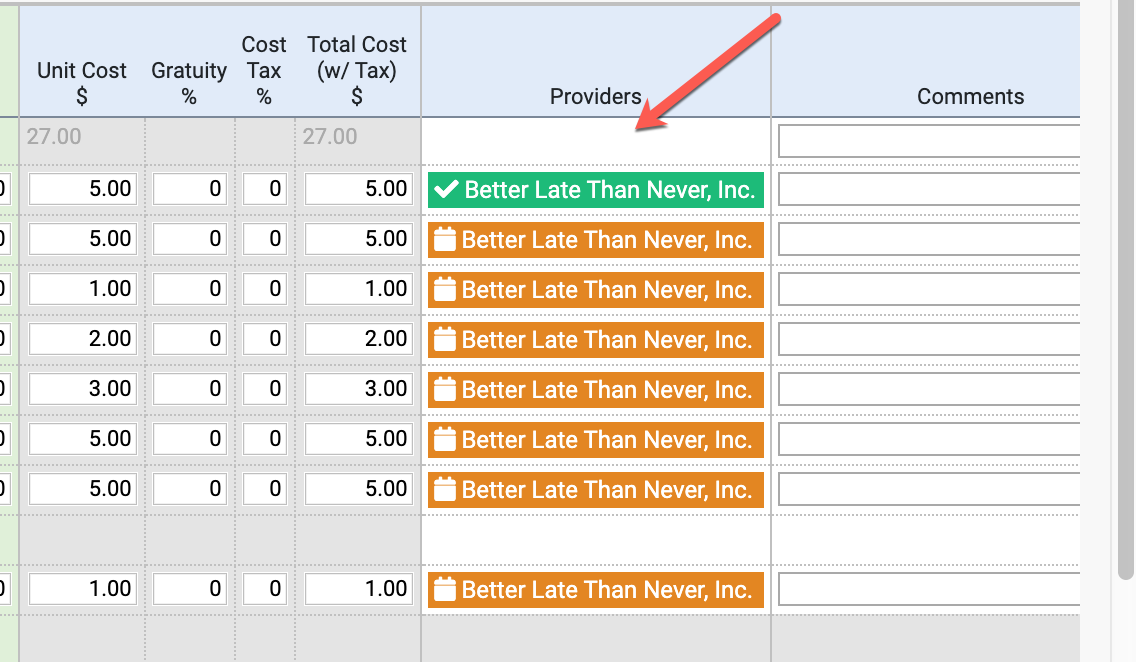
Providers listed in the costing tab
Added new Providers column to the Costing so you can see which line items are assigned to providers. And you can now bulk edit providers in the Costing using the Bulk Edit Menu in each event header. As well, they will list their status by color, such as: courtesy hold, reconciled, paid, etc. See screenshot:
Providers Tab
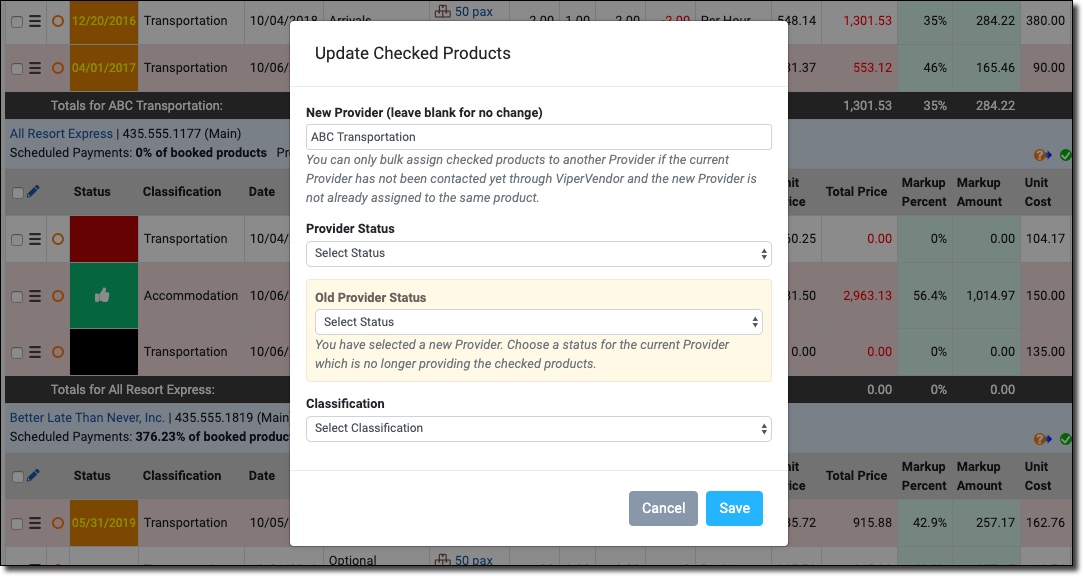
Added Bulk Edit to the Providers tab. You can now Bulk Edit provider, provider status, and classification with a couple clicks.
Providers Popup
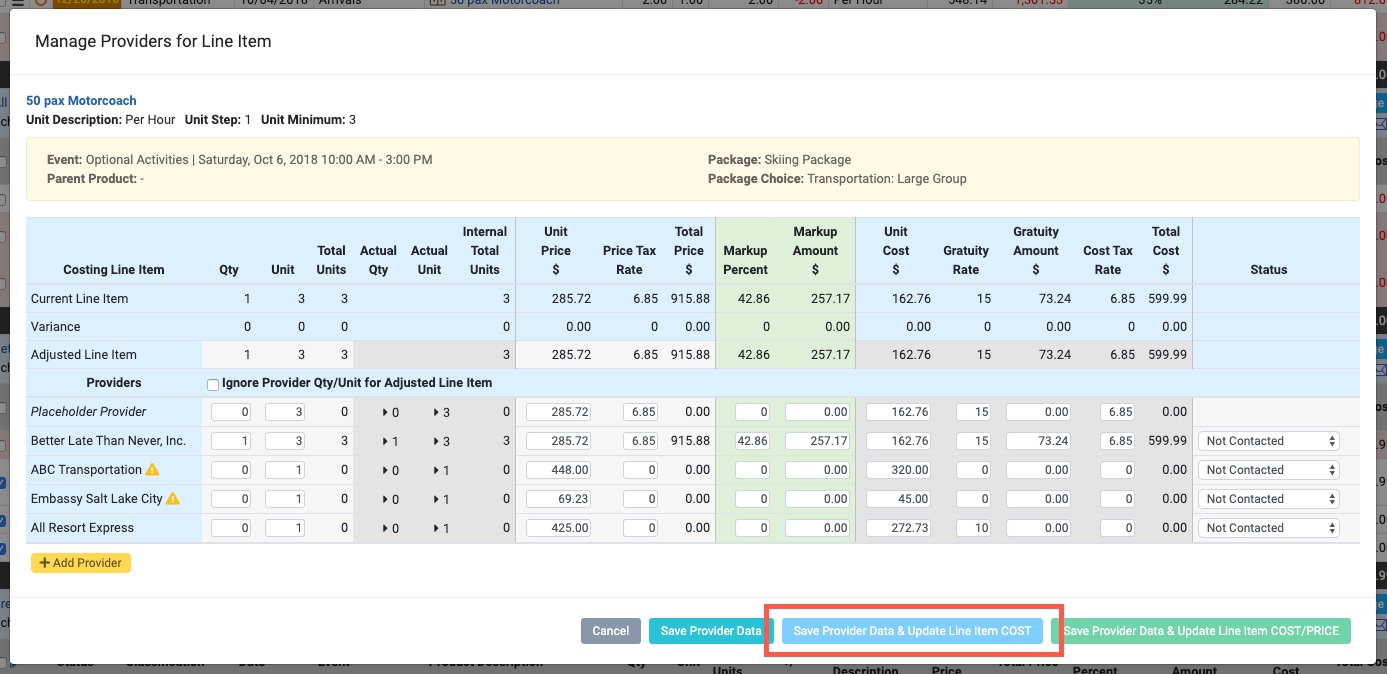
Added a new button to the Providers Popup that allows you to save only the COSTS back to the Costing instead of saving both the Price and the Costs back to the Costing.
Proposal - Add Program Logo
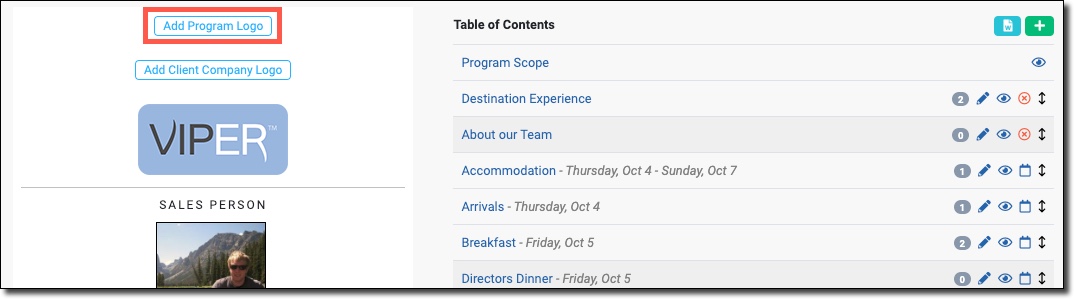
You can now set a "Program Logo" that is specific to the program, in addition to the existing Office Logo and Client Logo.
Proposal - Copy in Sections and Events from Templates
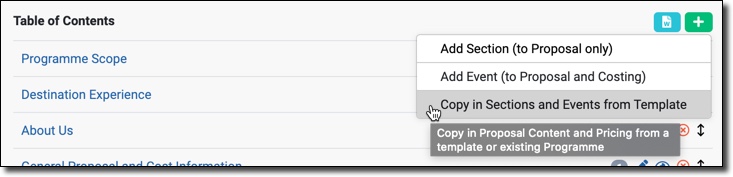
Forgot to pick a program template when you initially created a program? Or wasn't sure which one to pick because you still needed to gather more information from the client? You can now copy in Sections and Events from a Program Template or another existing program at any time. Click the green [+] button at the top of the Proposal Table of Contents to find the new option!
Client Site
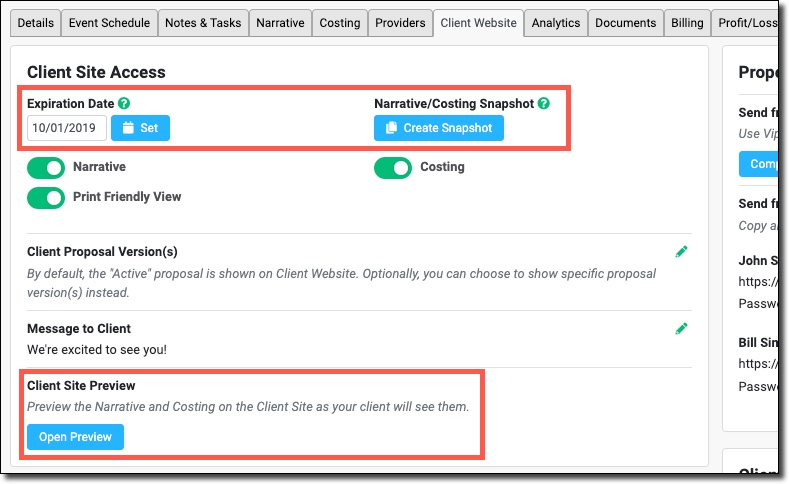
Preview Mode: You can now Preview the Client Site without having to publish the Proposal and/or Costing.
Proposal Expiration Date: You can now set an expiration date for when the client will no longer be able to access the proposal.
Create Snapshot Button: Added "Create Snapshot" button to the Client Site so you can conveniently create a snapshot before sending the proposal to client if you wish.
Unpublish on Status Change: If user changes program status to Cancelled, Postponed, Dead or Closed, the proposal is automatically unpublished.
Proposals Report
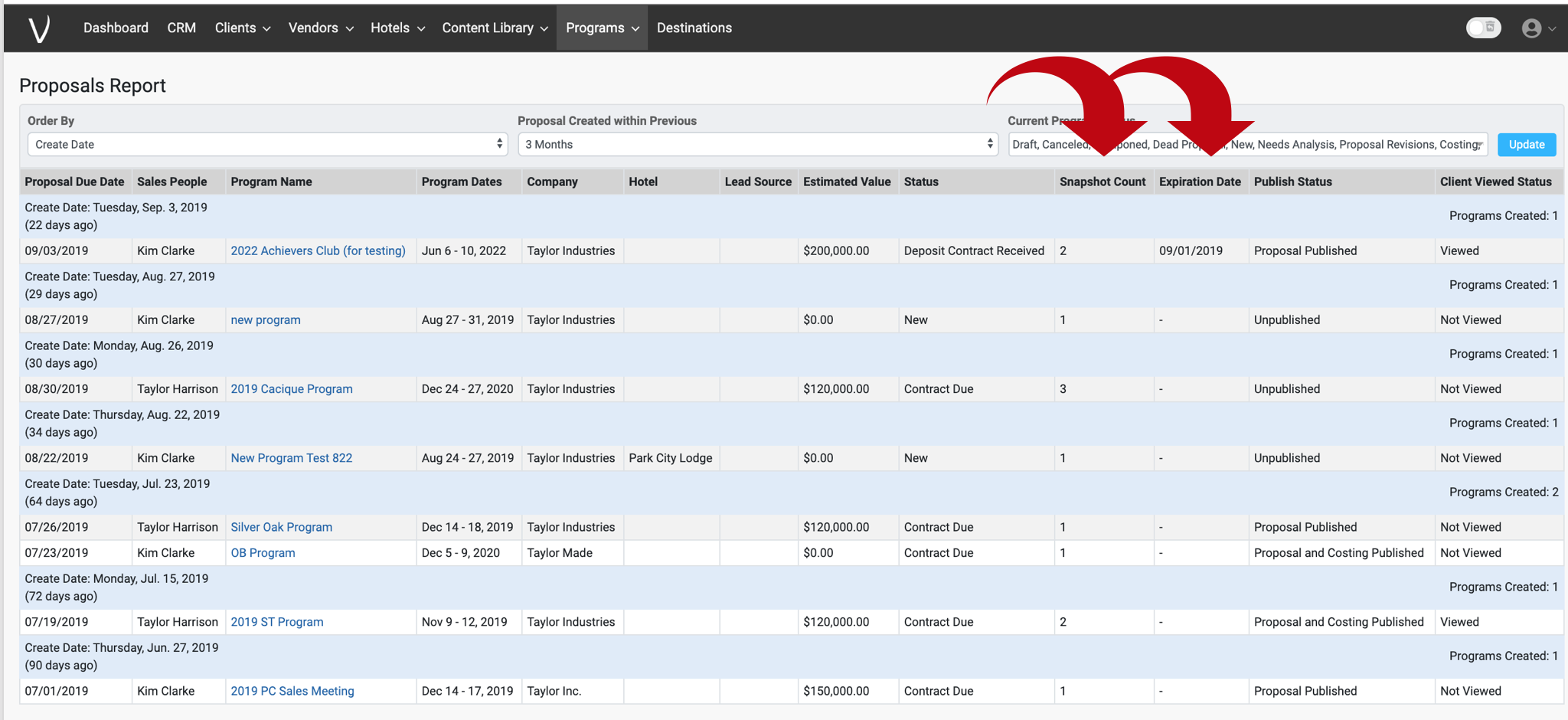
Added new columns to the Proposals Report: Hotel, Lead Source, # of Snapshots, and Proposal Expiration Date.
Comments
0 comments
Please sign in to leave a comment.