
Costing Improvements
Improved Interface and Mass Edit Commands
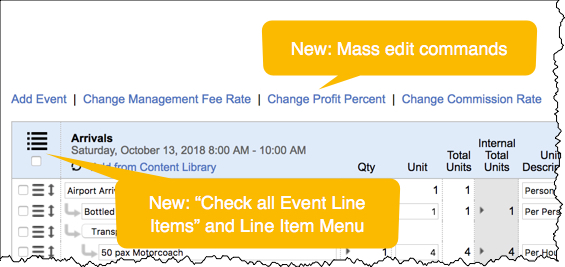
With the addition of several new commands and actions, menus and buttons in the Costing have been streamlined for ease of use. Be sure to familiarize yourself with the new interface changes.
Using the links at the top of the Costing, you can now change the Profit Percent and Commission Rate for EVERY Line Item in the Costing. Using the Event Header Menu, you can also change Profit Percent and Commission Rate for just the checked line items in an Event.
Exclude Line Items from Totals
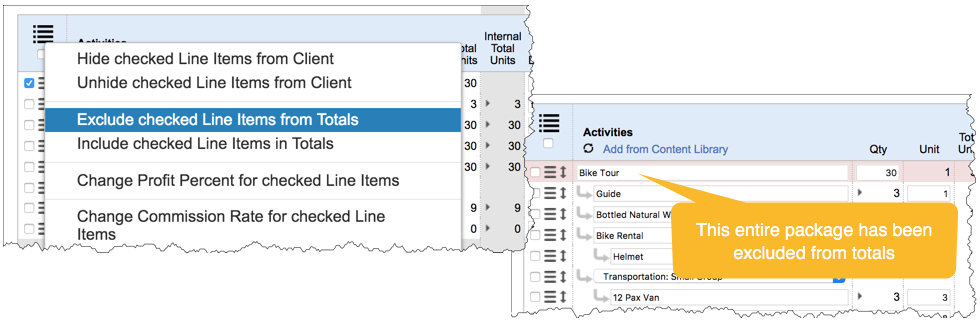
Line items can now be excluded from Event subtotals and grand totals. This allows you to price out products and packages for clients when proposing multiple options, but exclude them from totals so you don't bloat the totals for a given Costing. Excluded line items will be highlighted in red on the internal costing and the client version of the costing.
To exclude a line item, check the desired line item(s) and select "Exclude Line Items" from the Line Item Menu in the Event header. To include line items that have been marked as excluded, check the excluded line items and select "Include Line Items" from the Line Item Menu. TIP: You can check just the main line item for a package and mark it as excluded to exclude the entire package from the event subtotal and grand total. You do not need to mark every line item in the package as excluded to exclude them from the event subtotal and grand total.
Event Management Fee
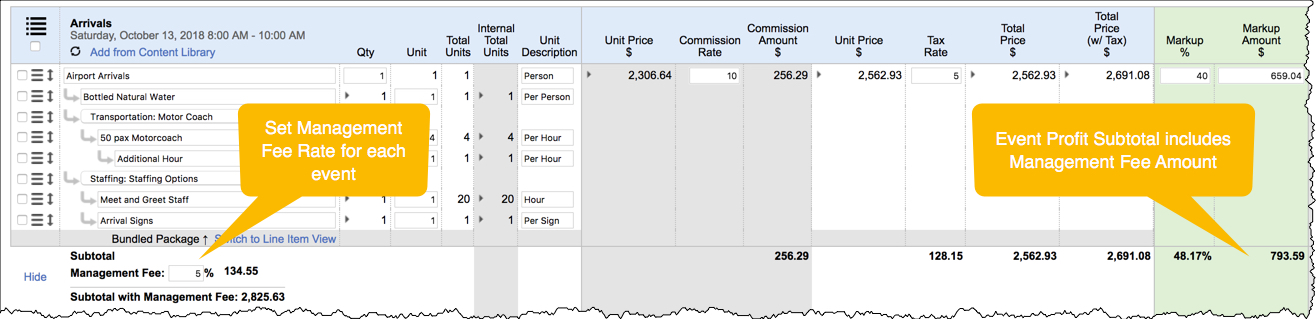
For each Costing Event, you can now specify a management fee. The management fee will show to the Client and is calculated using the following formula: Total Price with Tax * Management Fee Rate Percentage. So for a Costing event that has a Total Price with Tax of $50,000 and a Management Fee Rate of 10%, the Management Fee Amount would be $50,000 * 10% = $5,000. The Costing Total will automatically calculate the average Management Fee Rate and total Management Fee Amount for all events.
Payment Profile
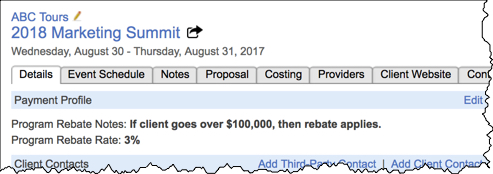
New fields for tracking client payment details have been added to Client Companies and Programs. These new fields allow you to track important payment information about each Client Company so that you can account for important profit margins in your costings to compensate for things like rebates, commissions, concessions, and credit card fees.
Company Payment Profile
At the Company level, you can specify standard payment agreements regarding rebates, commissions, and concessions. You can also indicate whether the Client Company uses a custom contract or services agreement, and whether credit card fees are waived for the Client Company.

Program Payment Profile
The Payment Profile details are carried forward to all Programs for the Client Company, but you can specify additional specific details at the Program level, like Commission Rate and Rebate Rate. You'll see Payment Profile options in the New Program Wizard and the Program Details tab. When viewing the Costing, you'll now see reminders to compensate for Commission Rate, Rebate Rate, or waived credit card fees. And when viewing the Contracts tab, you'll now see reminders when the Client Company uses a custom contract or services agreement.
Program Activity History
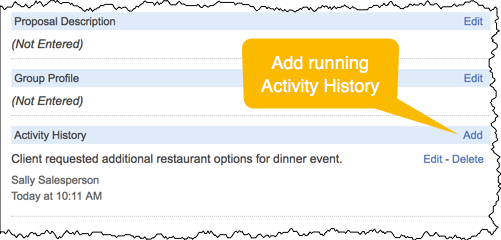
From the Program Details tab, you can now enter Activity History for the program. Each Activity History note is timestamped and indicates which user added the note. All notes show to all users and you can add as many notes as you'd like.
Client Proposal - Printer Friendly View
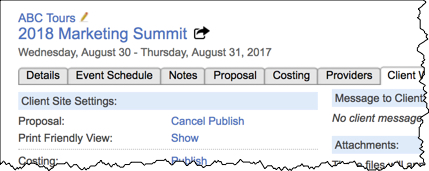
From the Client Website tab, you can now enable a Printer Friendly View of the proposal on the Client Site. This view allows the client to view the entire proposal on a single web page, which makes it easy to print the proposal or save it as a PDF using the browser's built in "Save as PDF" option. Media types that are not supported by printers and PDF documents get special treatment in the Print Friendly View. All galleries and slideshows are automatically converted to picture collages and embedded videos are converted to links. If you prefer to offer a print friendly view in Word format, you can still export proposals to Word internally and attach the file to the Client Website.
Providers Improvements
Providers Tab
The Providers tab has been improved to show discrepancies between line items and Provider data. If the Price column or Cost column is red, then the corresponding line item has a different total than the price and costs you have entered for the Provider. Payment Totals were also added to the header at the top of the Providers tab so you can quickly see totals for scheduled payments and processed payments.

Providers Popup
In the Providers Popup, you can add a Provider for a given line item "on-the-fly." Now, when you add a new Provider in the Providers Popup, the totals for the current line item automatically populate into the new Provider row to save you the effort of reentering the new pricing details.
Other Improvements
- Bundled Packages in Ops Costing: When changing the cost of a line item in a Bundled Package and the Costing is in Operations mode, the Profit Percentage for the package will now recalculate to keep the same price to client.
- Jump to Linked Opportunity: If you are using the VIPER CRM, you can now jump to the corresponding Opportunity in CRM from with the Program Details tab in Viper. Just click the external link icon next to the Program Name to open the Opportunity in a new browser window.
- Accounting Notifications for all Program Employees: Accounting Notifications that are automatically sent when a payment is added to the Client Billing area or Provider Billing area are now sent to all employees linked to the program so no one is left out of the loop.
- New Employee Roles: Two new Employee Roles have been added, which can be renamed through the Admin Site under Settings > Words.
- Vendor Reports: New Vendor Reports (list of all Vendor Contacts and Vendor companies) can be downloaded from the Vendors tab in HQ office.
- Payment Schedule Attachments: Fixed issue with file attachments that had apostrophes in the file name.
Comments
0 comments
Please sign in to leave a comment.