
Content Block Styles are a great way to add a custom look to your content and improve how your content is formatted. While Content Block Styles require the help of Viper staff to set up initially, they are very easy to use once they are configured in your Viper Site.
Content Block Styles Explained
Before you go to work on designing your Content Block Styles, you should understand how Content Block Styles work. Remember that Content Blocks are used to build proposal content in your Content Library. Content Blocks (like Text Only, Text Next to Image, Full Screen Image, Slideshow, Gallery, Video, and Audio Clips) are combined in an Article to provide a complete description of a single activity, service, restaurant, venue, etc.
In this example, we'll look at a Content Library Article for White Water Rafting. It is comprised of multiple Content Blocks, starting with a Text Next to Image block and followed by a Text Only block.
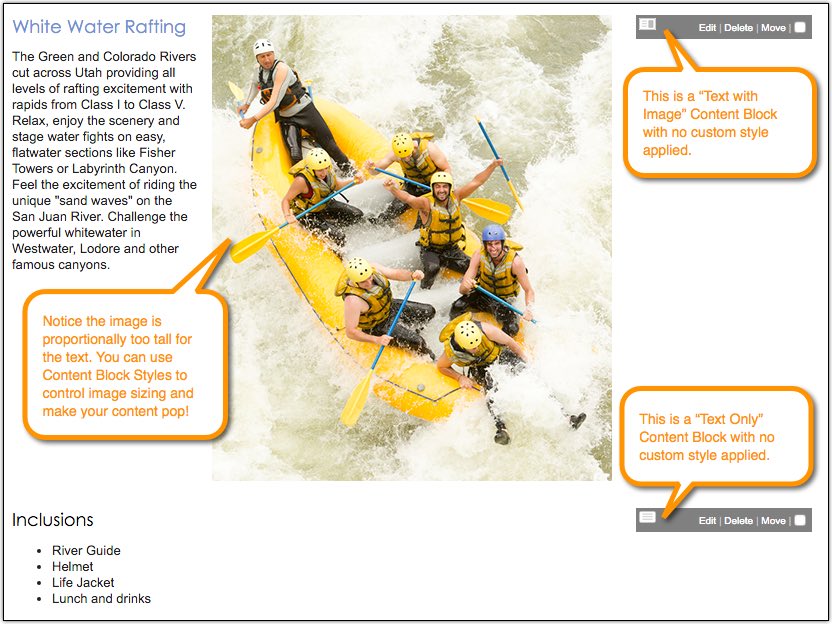
Content Library Article with two Content Blocks. No custom Content Block Styles have been applied.
Now let's take a look at the same Content Block with a Content Block Style applied.
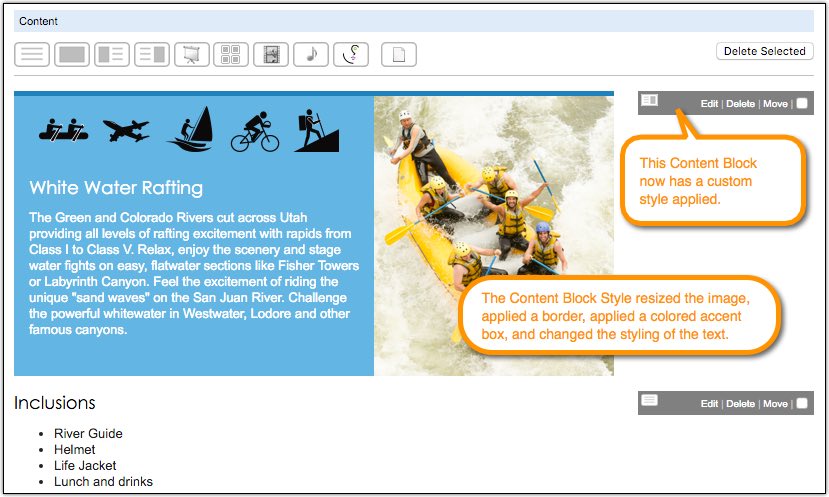
The Content Block Style resized the image, applied a colored accent box and image, and restyled the text.
With a couple clicks, the Content Block Style can be applied and now it has a totally different look.
Setting up Content Block Styles
Create examples of desired styling: Now that you have an understanding of how Content Block Styles work, you can begin designing them on your end. Using your favorite design software (like Microsoft Word, Microsoft PowerPoint, Adobe Photoshop, Apple Pages, etc), put together some examples of what you'd like your Content Block Styles to look like. You can have specific styles for each type of Content Block. For instance, you could design a colored accent box and accent border for Text Next to Image blocks, like in the case above. Or, you could have a special border style for Full Width Image blocks. It's best to start simple!
Send examples to Viper Support: Once you have created examples of your desired Content Block Styles in design software outside of Viper, send the file(s) to Viper Support at support@vipeventresources.com. Viper staff will review your desired styling and then configure the Content Block Styles in your Viper Site. Once they are ready, you'll be notified and you can select them from the Styles dropdown when editing Content Blocks in Viper.
Using Content Block Styles
It is super simple to use Content Block Styles. Once they have been configured in your Viper Site by Viper staff, you can select them from a dropdown when editing a Content Block.
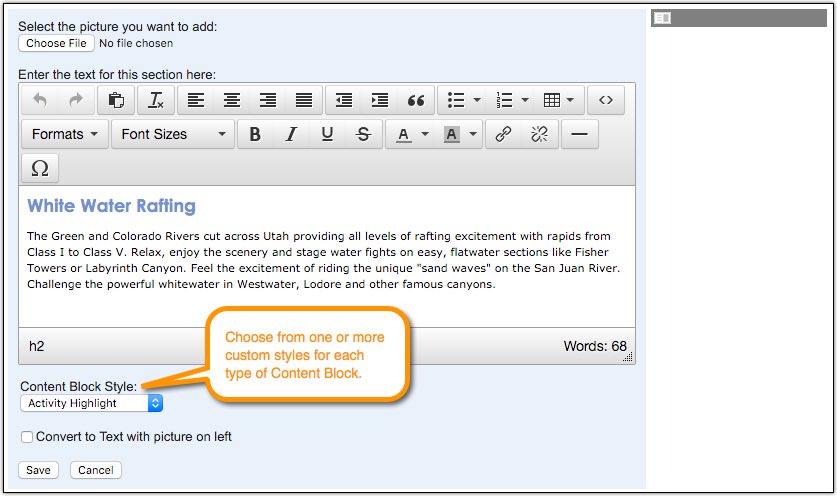
After your custom Content Block Styles have been added to your Viper Site, you can select them from a drop down menu.
Comments
0 comments
Please sign in to leave a comment.