
OPTIONAL
Viper now has the ability for you to contact and manage vendors directly from within VIPER using the Viper Vendor portal. Totally optional if you select this method.
1. Your provider (vendor) will need to be sent an initial request to begin using the system. You do this by selecting the orange icon to bring up the email popup.

Select which email contact person within the company you are sending to and then add a message and send. You can also add a file t to the message.
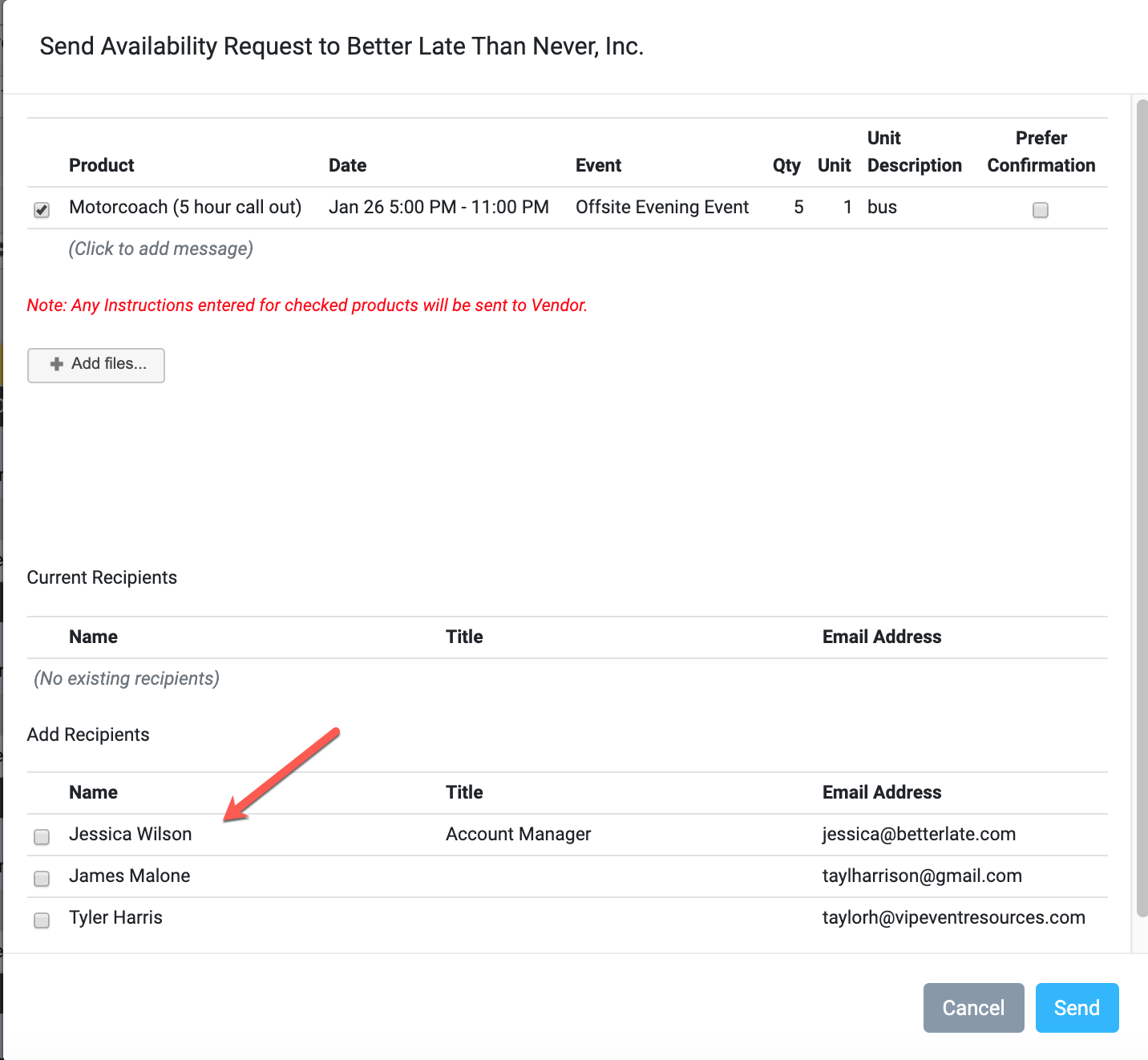
When the provider receives the initial email, they will need to set up an account in the VIPER portal to begin. From there, they can manage all of your requests going forward. Note: each action back and forth between you and the provider will prompt an email notification.
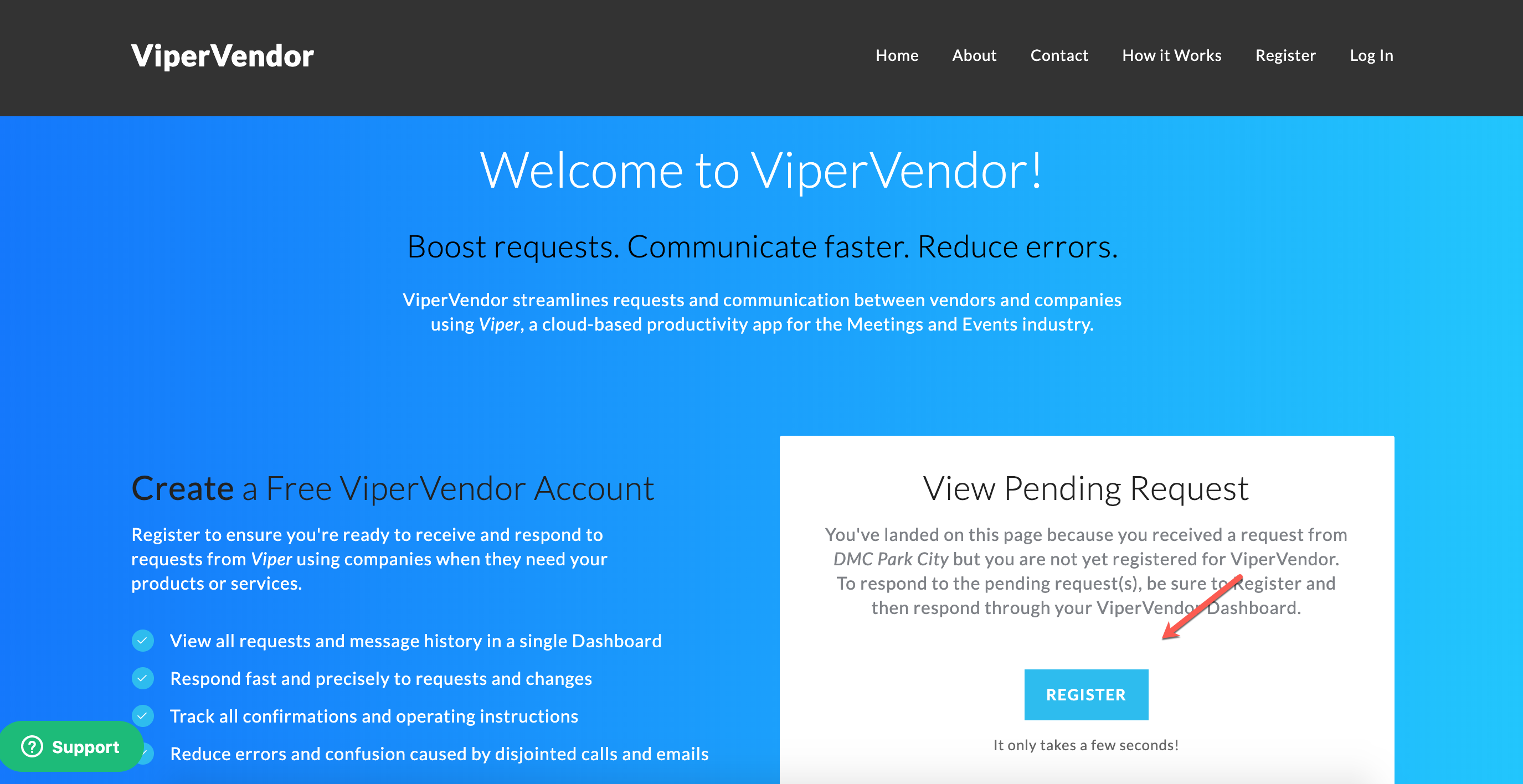
Once an account is setup, the provider will see an email link to login with their credentials

From the portal, the provider can then accept or deny request by changing the status and sending an email message. They will also have the option to bulk confirm or reject each item. Note: the provider will be able to see the cost you are paying for their services.
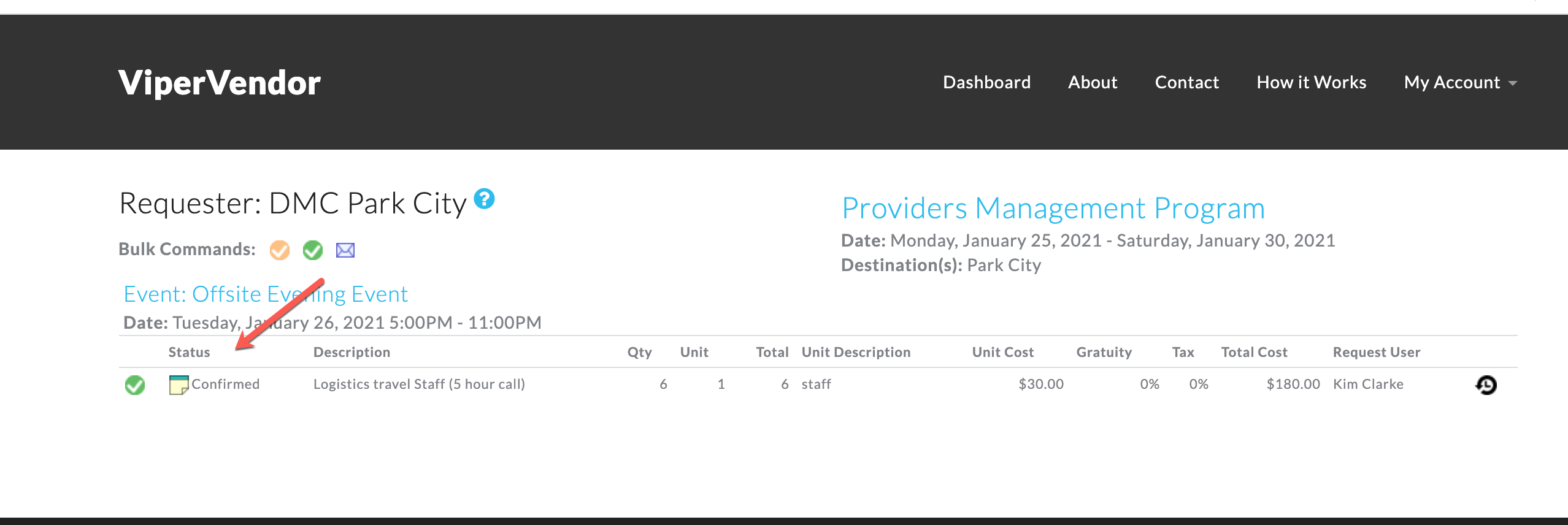
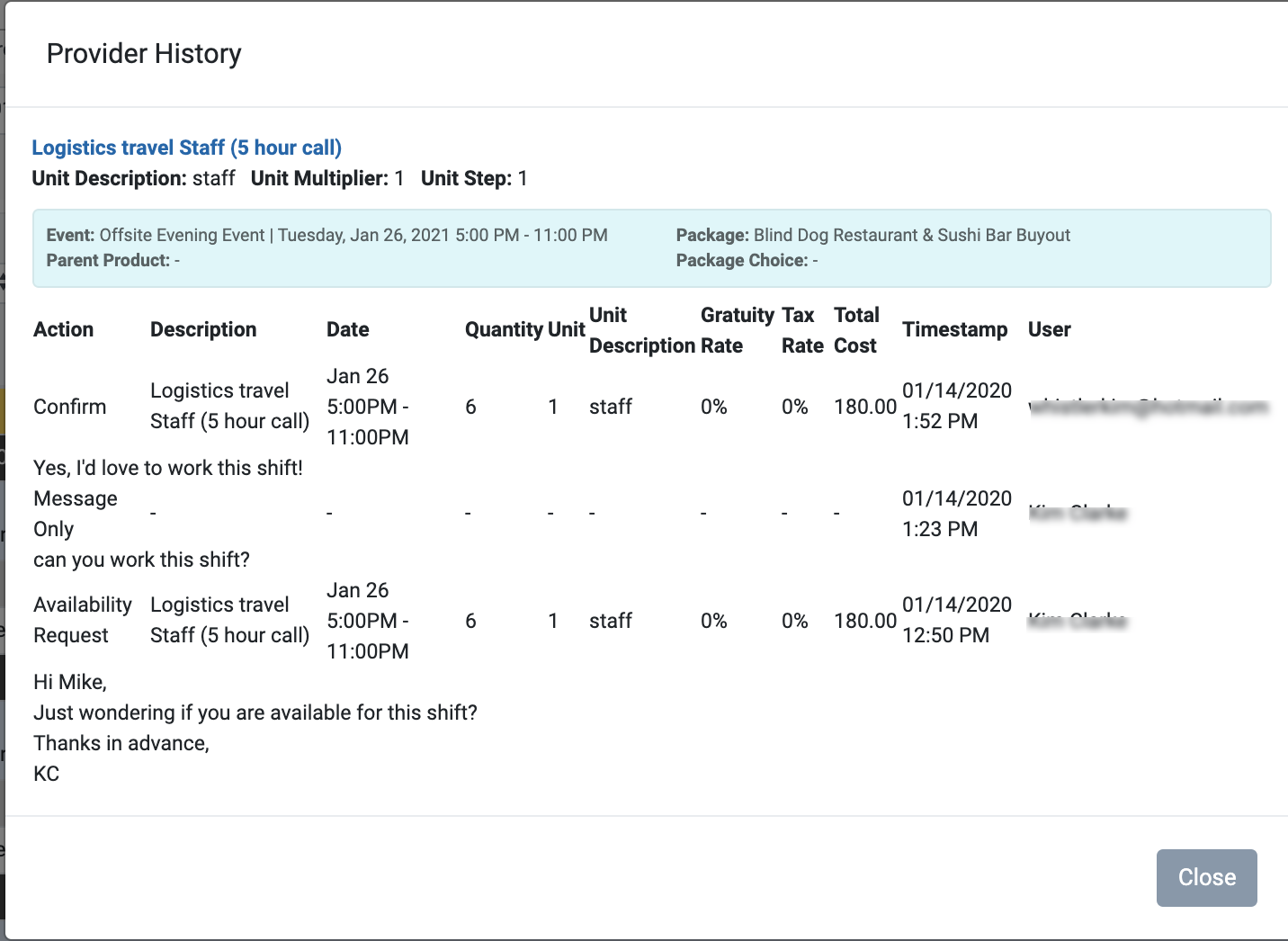
In this example, the provider has confirmed this shift, which has now updated the status for this element in your program.

Further changes and updates are done in the same method. Each change will prompt an email to the provider.
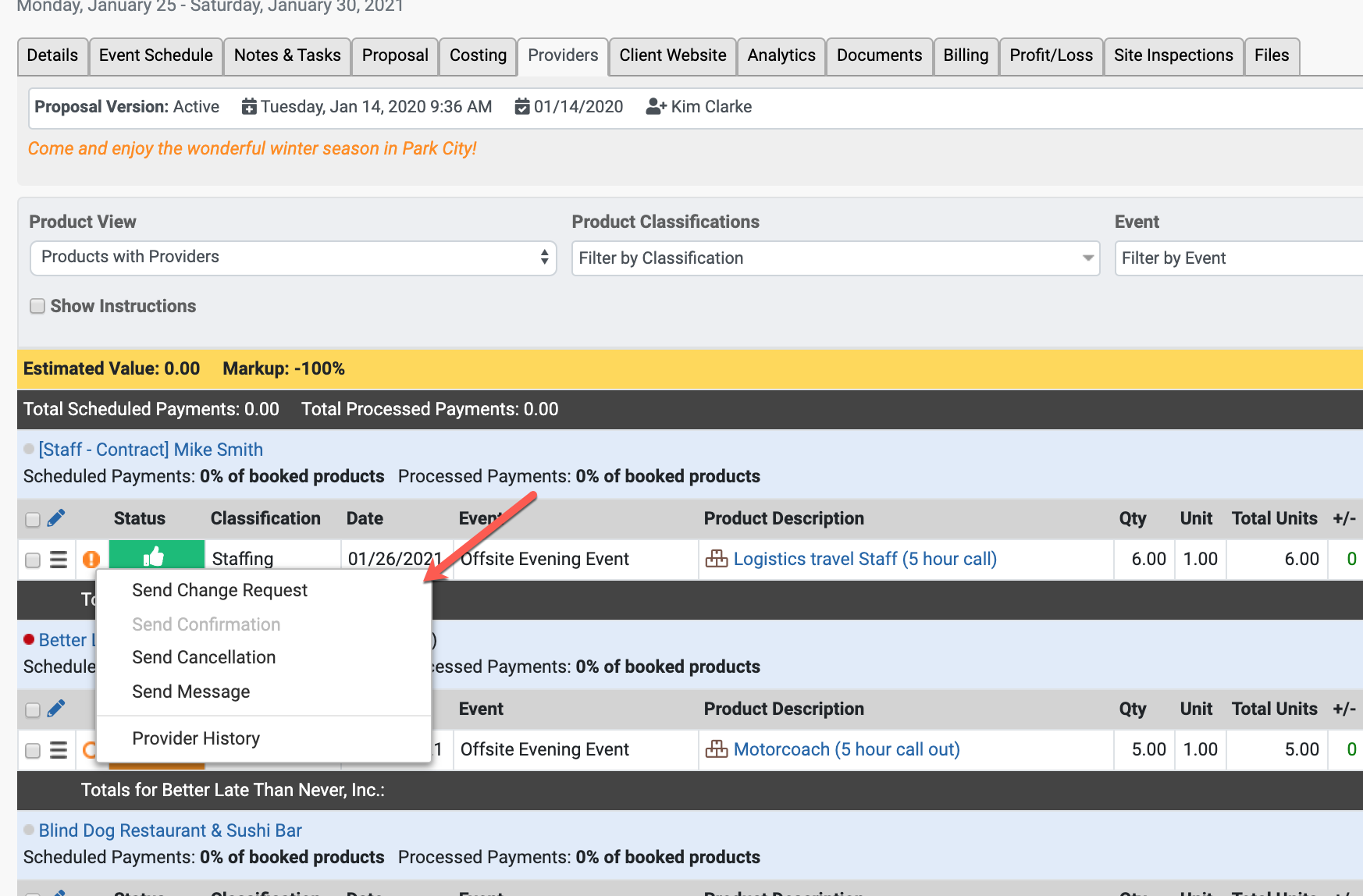
The Provider History option will show the communication thread between you and the provider.
Comments
0 comments
Please sign in to leave a comment.