
The default language for Viper is English and Viper does NOT automatically translate content to other languages. That being said, Viper does support multiple languages and includes a feature to help you better manage multiple languages within Proposals and Costings. Since translation done by computers is still not accurate in all cases, a human touch is required to translate client facing content and text into different languages. In a nutshell, all proposal descriptions for Packages, Products, and Background Articles need to be copied and manually translated, while Costing descriptions and comments only require Content Library items to be copied in some cases.
Multi-language Support in Proposal Content, Costing, and Client Site
Proposal Content (Articles and Descriptions)
Proposal Content (Background Articles and descriptions for Products and Packages) in the Content Library can be written in any language you choose and Viper supports all languages. For any proposal description that you want in multiple languages, we suggest you first write the description in your chosen base language (we recommend English) then copy the description and manually enter translations for text in the copied description. Since images are generally language independent, copying content allows you to translate the desired text areas and reuse uploaded images.
Pricing in Costing
Pricing in the Content Library can also be entered in any language but still requires manual translation. In the Costing, Client facing fields for pricing includes package/product name, unit description, and price comments. For any Package that you want in multiple languages, we suggest you first create the Package in your chosen base language (we recommend English), add the desired products, then copy the package and manually enter translations for text in the copied package description. The good news is that you do NOT need to copy a Package's Products to translate their name, unit description, and price comments into different languages because Viper offers translation options for Products.
Client Site
The Client Site (where clients view Proposals) will display proposal content and pricing descriptions/comments in whichever language you have entered them in. However, there are a few static headers, links, and instructions/phrases spread throughout the Client Site (like "Table of Contents" and "Click here to view your Proposal") which only display in English at this time.
Managing Multiple Languages in the Content Library
Content Library Folders
First, we suggest setting up language specific folders for translated Content Library items. For instance, assuming you have entered most items in English as your base language, you can create a folder named "Spanish" to hold translated items. You can create the "Spanish" folder as a top level folder in your Content Library or you can create a "Spanish" folder as a sub-folder in your existing folders. For instance, you might create a "Spanish" folder within your existing "Restaurants" folder to hold Restaurant items translated to Spanish.
Translating Backgrounder Articles
Background Articles do not have any pricing associated with them. They are used to provide general information to the client like "Destination Information" or "About our Company." To translate Background Articles, we suggest the following steps:
- Open the existing Background Article in your base language
- Click the [Copy] button in the upper right of the Edit Article page
- Choose the destination folder for the copied Article (see above suggestion on creating language-specific Content Library folders)
- After copying the Article, you'll automatically be taken to the newly created copied Article
- Change the Article name to indicate the language it is written in
- Manually edit all the text areas in the Article and translate the text to desired language
Translating Packages
Packages can have a proposal description and multiple products. Similar to Backgrounder Articles, Package Descriptions must be translated manually but Viper has a feature to handle product translations to minimize the number of products you might need to copy and translate. To translate Packages, we suggest the following steps:
- Open the existing Package in your base language
- Click the [Copy] button in the upper right of the Edit Package page (NOT the Edit Package Description page)
- Choose the destination folder for the copied Package (see above suggestion on creating language-specific Content Library folders)
- After copying the Package, you'll automatically be taken to the newly created copied Package
- Change the Package name to indicate the language it is written in
- Manually edit all the text areas in the Package description and translate the text to desired language
- After translating the Package description, return to the Edit Package screen and click on each Product to view/edit its translation (see "Translating Products" below")
Translating Products
In the Costing, Products can be used as individual Products or they can be used in an unlimited number of Packages. Any Products that are intended to be used as standalone products and have a proposal description, need to be copied if you want to translate the product's description into multiple languages. Separate from a Product's proposal description, you can enter translations for the Product's name, unit description, and price comments to be used in the Costing. To translate Products, we suggest the following steps:
- Open the existing Product in your base language
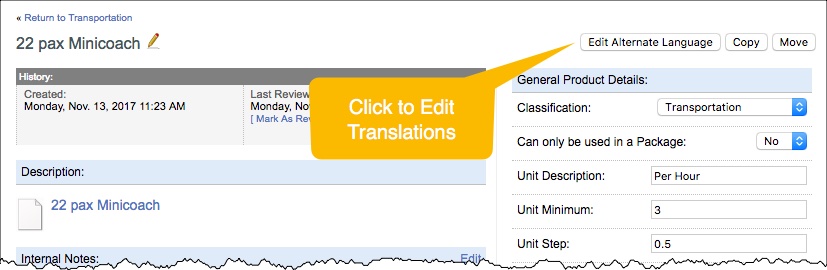
- Click the [Edit Alternate Language] button in the upper right of the Edit Product page (If you do not see this button, please contact Viper support)
- Click the [Copy] button in the upper right of the Edit Package page (NOT the Edit Package Description page)
- Choose the destination folder for the copied Package (see above suggestion on creating language-specific Content Library folders)
- After copying the Package, you'll automatically be taken to the newly created copied Package
- Change the Package name to indicate the language it is written in
- Manually edit all the text areas in the Package description and translate the text to desired language
- After translating the Package description, return to the Edit Package screen and click on each Product to view/edit its translation (see "Translating Products" below")

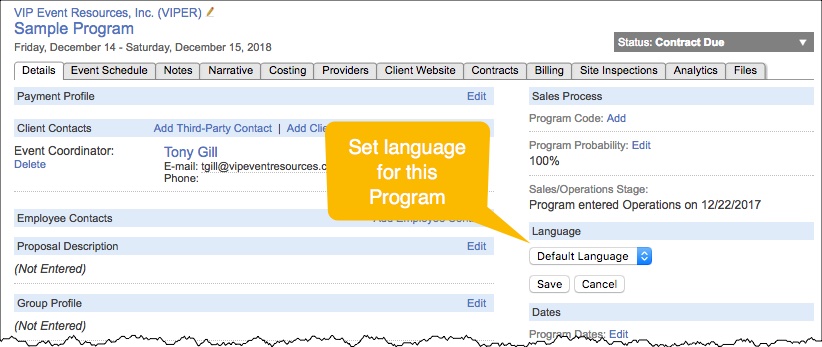
Setting Language for a Program
After entering Product translations, be sure to set the desired language for any given program in the program's Details tab. When products are added to the Costing, the selected language will be used if a translation has been entered, otherwise the base language will be used.
Comments
0 comments
Article is closed for comments.