
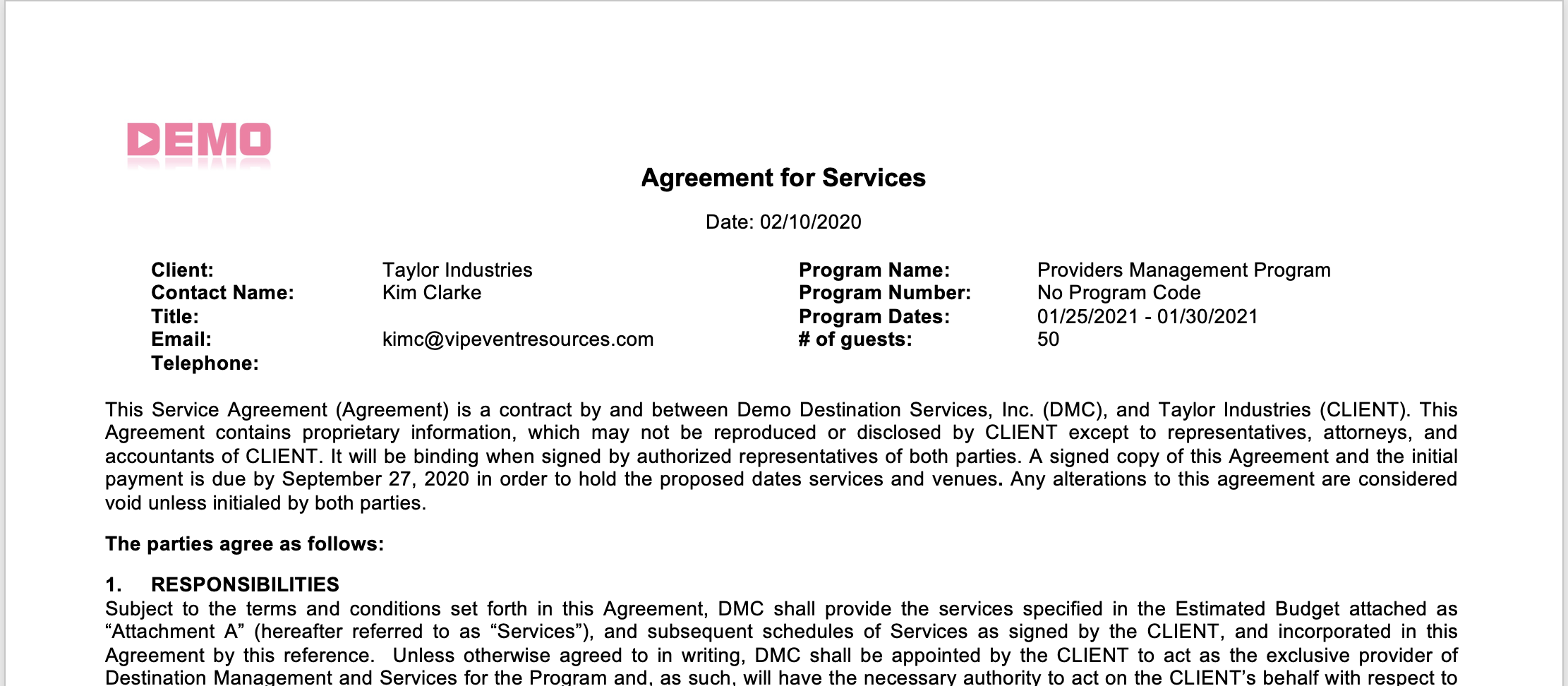
Generating a contract is extremely easy with VIPER. Contract templates that your organization has set up are available in the contracts tab in your program dashboard in VIPER.
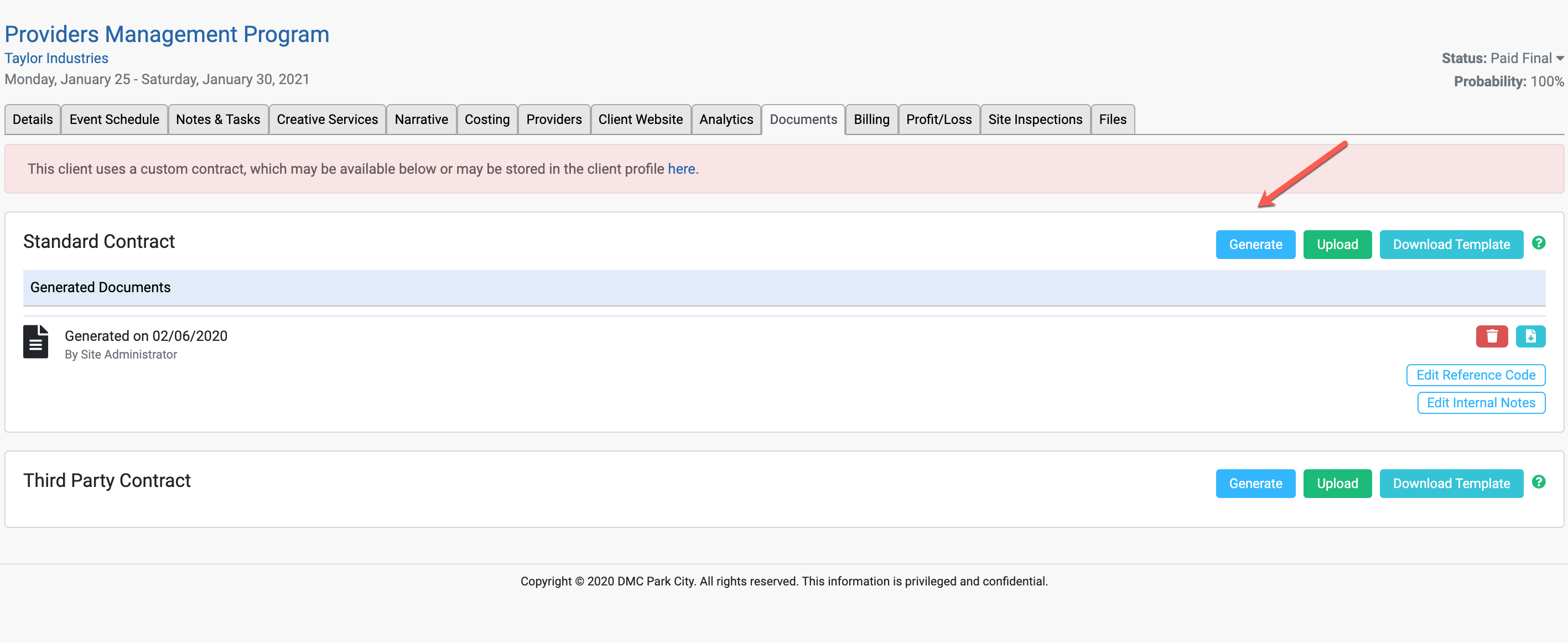
- Click on the "Contracts" tab in the program dashboard
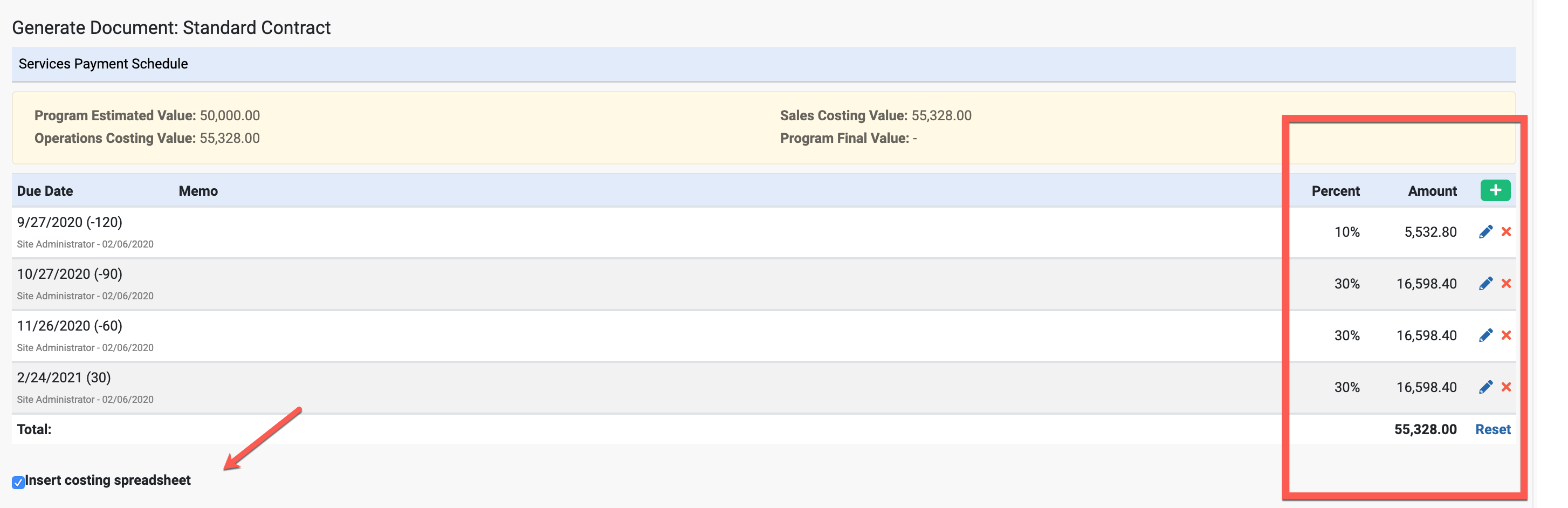
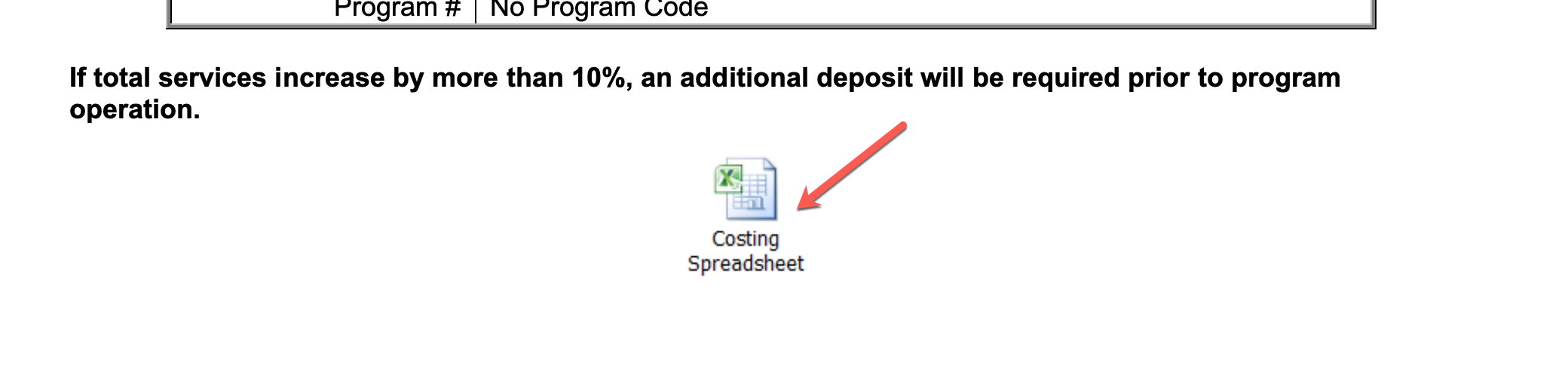
- Adjust the payment schedule as necessary for using the options of: absolute date, days before program starts or days after program ends. Also select if you would like a client side costing spreadsheet inserted with the document.
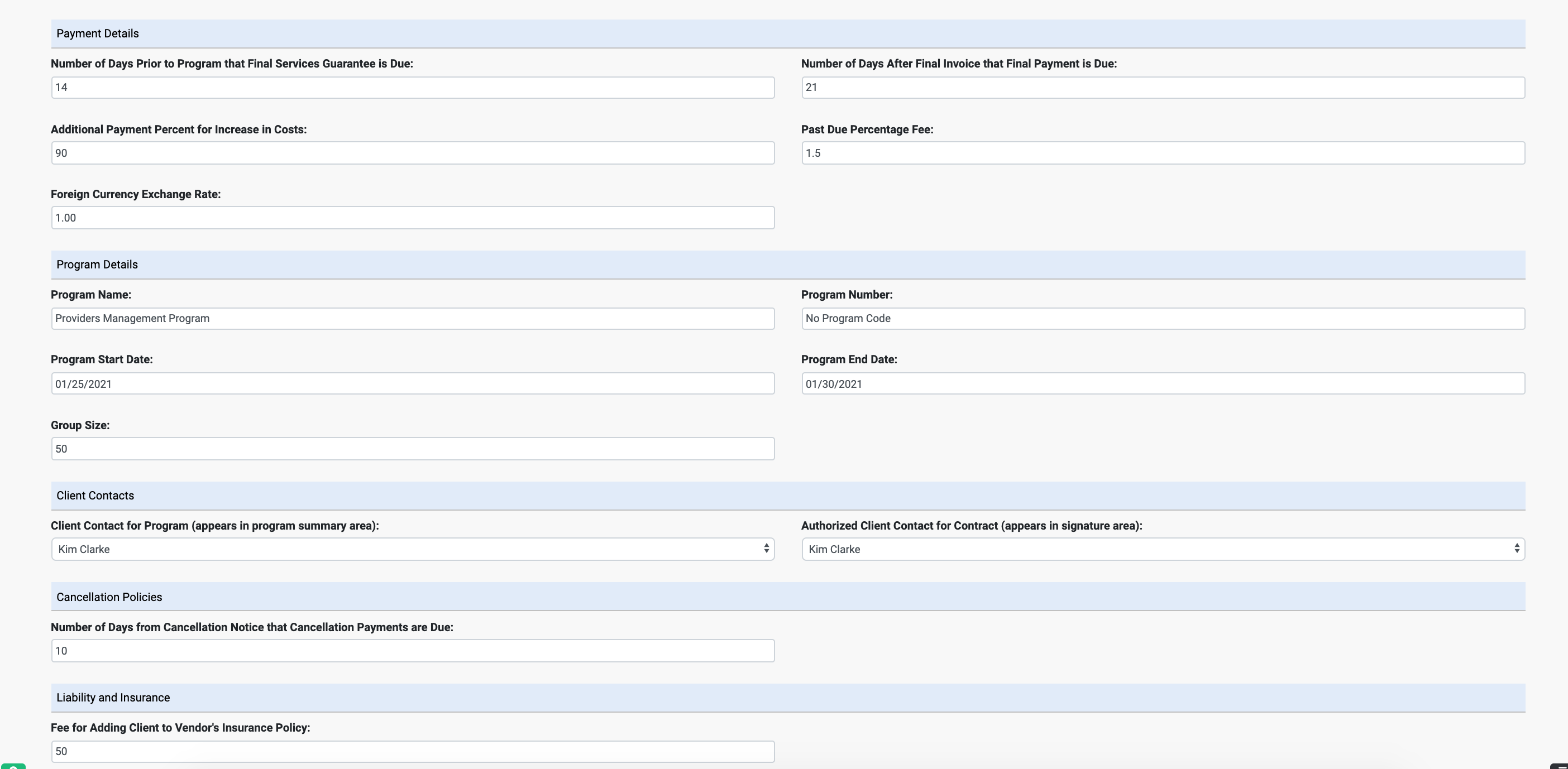
- Fill in any other payment details that are required.
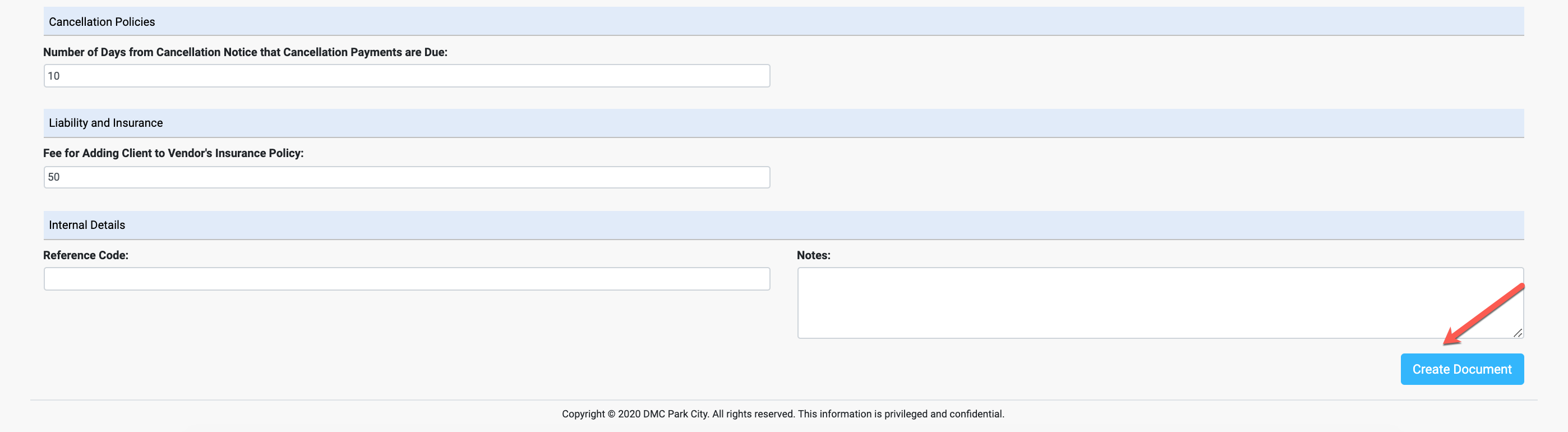
- After all fields are correct, select create document.
- A word document will open in a new window for your review. If you selected to attach a costing spreadsheet, you will see it embedded at the end of the word document.
- The contract is now ready to send to your client by email, fax or to convert to an electronic signing document which is GDPR compliant. Here is the help article to show you how to convert a word document with Adobe Sign - https://viper.zendesk.com/hc/en-us/articles/360035763312-Convert-a-Viper-Contract-to-Adobe-Sign.
Comments
0 comments
Please sign in to leave a comment.